Online Form How-To
If you have a JHED-ID, review these step-by-step instructions.
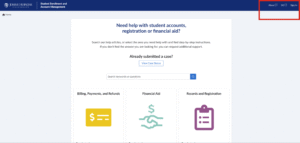
- Navigate to SEAM’s online form at support.sis.jhu.edu
- In the upper right-hand corner of the screen, click Sign-In. If you do not sign in now, you will be prompted to later.

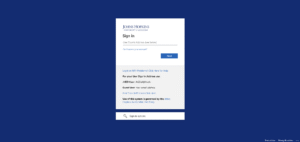
- Sign in using your JHED credentials.

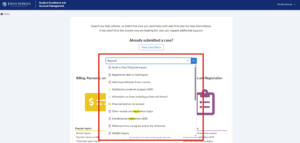
- Browse popular topics under each icon or search for a keyword or topic using the search bar.

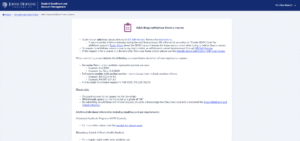
- Once you arrive at a help topic, you will find guidance and further instructions.

- If you do not find what you are looking for and need additional support, scroll down to the bottom of the page and click on the “Request Support” button.
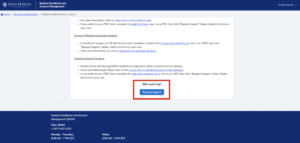
- You will be taken to SEAM’s online form where you can submit a case and attach any needed documents.
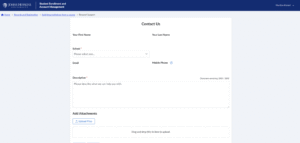
- Click the “Submit” button. You will receive a unique case number and a confirmation email.
- You can check the status of your case at any time by clicking your name in the upper right-hand corner of the screen and selecting “My Cases.”
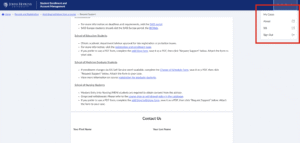

If you already have a guest account as an Authorized User for SIS, you can use that account to log in to SEAM’s online form, you do not need to create another account.
All other users without a JHED ID (prospective students, parents, guardians, alumni, and others) are required to create a guest account before they can request support via SEAM’s online form. For more information, view setup instructions or watch the video below.
Accordion Content